Tripo AI review 2026: 3D models from text and images without long manual modeling
Tripo AI is most useful when you need to validate a shape, style, or base asset quickly, not when you expect a finished production model with no review. It can take a text prompt or reference image and turn it into a 3D object that can be exported into common formats.
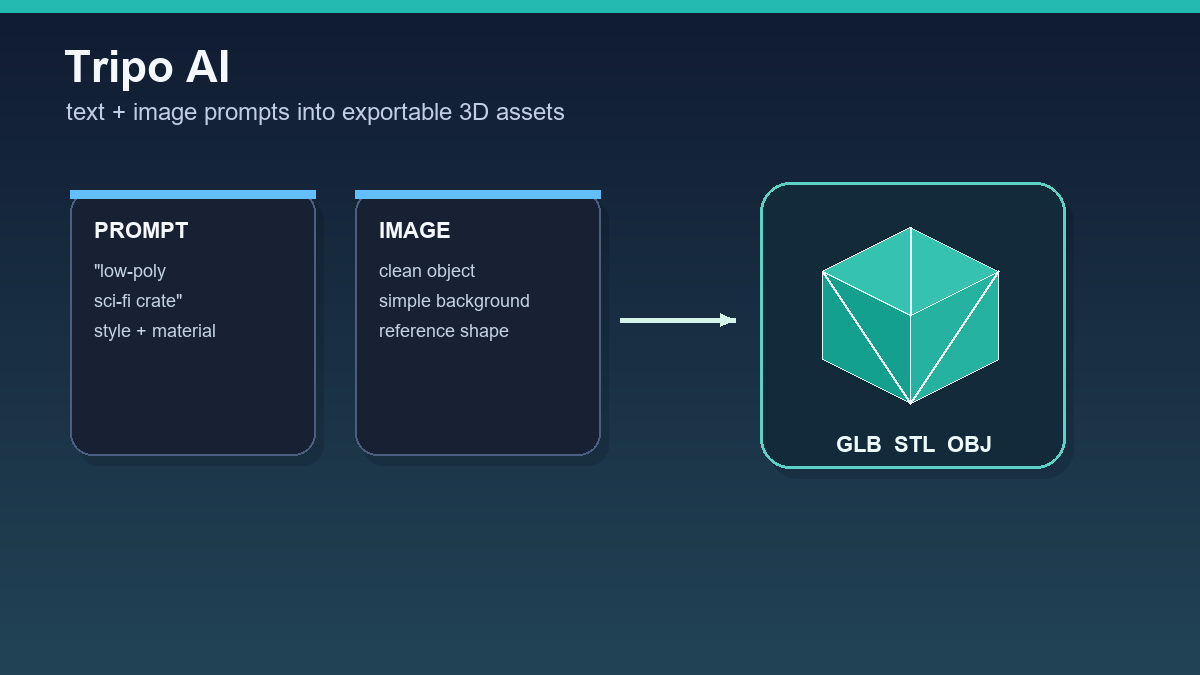
The important part is to treat the output as a draft, not as a final modeler deliverable. Its strength is iteration speed: you can compare several variants, choose the best silhouette, and clean it up in Blender or in your game, visualization, or printing workflow.
What Tripo AI does well
The best results usually come from clearly named objects: a game prop, a simple product, a stylized figure, a decoration, a technical accessory, or an object with a strong silhouette. When the prompt describes material, scale, angle, and style, Tripo tends to produce a more useful shape than with short generic prompts.
The advantage over starting manually in Blender is speed. Instead of an empty scene, you get a concrete mesh that can be rotated, compared, and exported. That helps with prototyping, moodboards, game placeholders, and client concepts where direction matters more than final detail.
- Text-to-3D is useful for fast style and silhouette variants.
- Image-to-3D is better when you already have a sketch, product photo, or concept.
- Exports such as GLB, STL, and OBJ make the handoff easier.
Where the result needs review
An AI 3D generator can create a visually convincing model that still has weak topology, unnecessary surfaces, symmetry issues, or small holes. For game assets, check polygon count, normals, pivot, scale, and textures. For 3D printing, also verify that the volume is watertight and details have enough thickness.
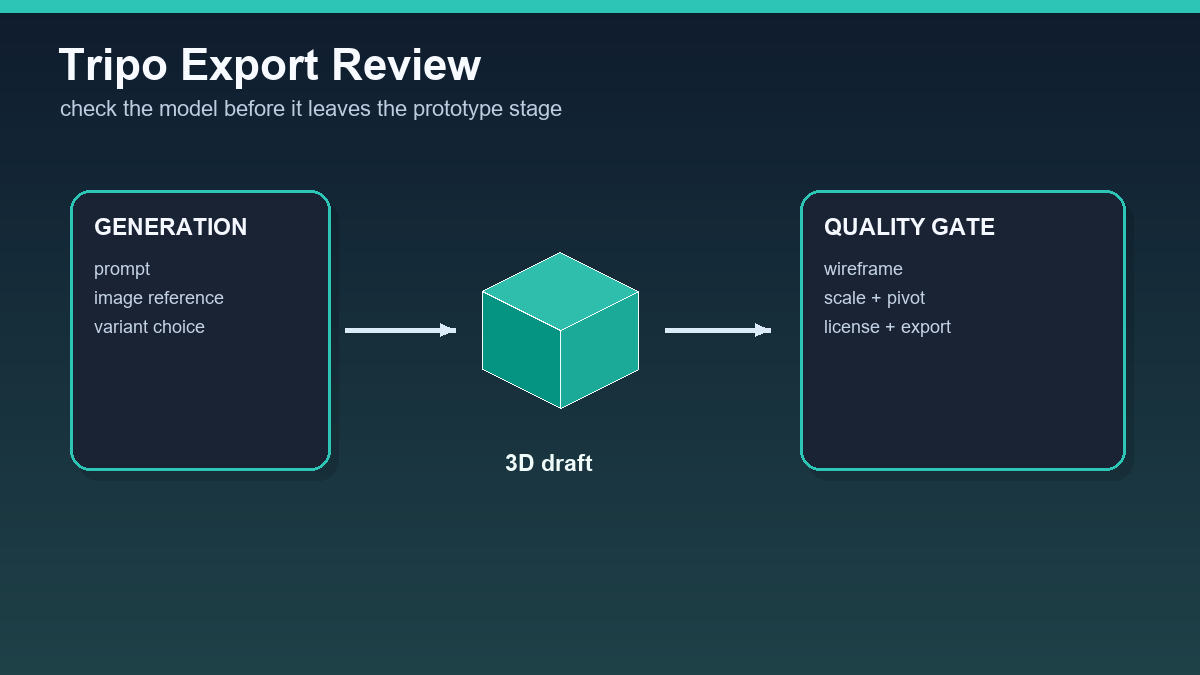
Tripo therefore does not remove the whole 3D workflow. It shortens the first phase where you search for an idea and base shape. Final quality still depends on inspection in a tool where you can see the wireframe, UVs, materials, and export settings.
Credits and licensing matter
Tripo promotes a free start and paid credit-based plans. For the free plan, always check the current usage terms, especially commercial rights. For internal testing this may not matter, but for game assets, templates, marketplaces, or client work, licensing is essential.
A practical rule: use free access to test workflow and quality. Once a model is intended for a commercial project, confirm the plan, license, and keep a note of the asset source.
Recommended test workflow
Start with one concrete object, for example "low-poly sci-fi storage crate, clean bevels, game asset, neutral lighting". Generate three to five variants, export one as GLB, and open it in Blender. Check size, vertex count, textures, and pivot before importing it into an engine or preparing it for print.
If the result fails, do not change just one word. Add the model purpose, style, material, desired detail level, and constraints such as "no background, no text, no extra parts". For image-to-3D, a clean object image on a simple background usually works better.
Verdict
Tripo AI is a useful accelerator for first 3D drafts. Its strongest value is quickly discovering whether an object works spatially. It is not a replacement for technical mesh review, retopology, and export testing, but it is practical for prototypes and visual exploration.
Practical Tripo AI test before using it in a project
The most useful way to judge Tripo AI is not one attractive gallery render, but a short test across several types of briefs. Generate one simple game prop, one product object, and one asymmetric object with a clear front and back side. For each output, save the prompt, input image, exported file, and a screenshot from Blender inspection. This quickly shows whether the tool can deliver repeatable assets, not only a good first impression.
- For web previews, GLB is usually a practical first export because geometry and materials stay in one file.
- For further editing in DCC tools, compare OBJ or FBX and check whether textures survived the transfer.
- For 3D printing, treat STL or 3MF as a starting point: scale, mesh holes, and wall thickness still need inspection.
Before exporting, compare Tripo’s official format overview with the target workflow. Tripo lists formats such as USD, FBX, OBJ, STL, GLB, and 3MF, but practical usability depends on where the model is going. The Blender glTF documentation is also worth keeping nearby because it helps reveal material, UV, and scale issues early.
Useful links: Tripo AI export formats, Tripo platform billing, Blender glTF manual.
Links in this article
Doporučení ke čtení