Figma Make guide 2026: from product idea to testable prototype
Figma Make is interesting because it does not only promise a static screen image. The official page describes AI-powered generation and iteration inside Figma, editable outputs and Supabase connections for apps with real data. For product teams, it is useful when treated as a prototyping layer, not as a shortcut around UX work.
Quick verdict for a small team
Figma Make makes sense when you need to test an application flow, landing page or dashboard quickly. The main upside is fast first versions and continued editing inside the Figma ecosystem. The main risk is confusing a good-looking screen with validated UX.
- Strong for generating variants and interactive prototypes quickly.
- Editable output matters because AI drafts rarely equal final UX.
- Weaker at priorities, error states and domain logic.
What the official source shows
Figma Make says you can edit AI outputs, rewrite copy, replace images, change padding and margins or copy a preview into Figma Design layers. It also mentions Supabase for authentication, data storage and private APIs. The Figma AI overview places Make within the broader AI feature set.
- Editability is crucial because the first AI version is not final UX.
- Supabase is useful for realistic data tests, not for bypassing architecture.
- Figma Design handoff helps keep designers in control.
Where it makes sense in practice
I would use it to validate a product hypothesis: onboarding, account settings, admin dashboards, offer calculators or internal forms. The prompt should not be 'make a modern app'; it should include the user role, goal, data and states.
- Before prompting, write the main user story and success condition.
- After generation, review empty, error and mobile states.
- Rewrite UI copy manually; generated microcopy is often generic.
Recommended workflow
The best workflow combines AI speed and design discipline. Figma Make should create material for discussion, not replace discussion.
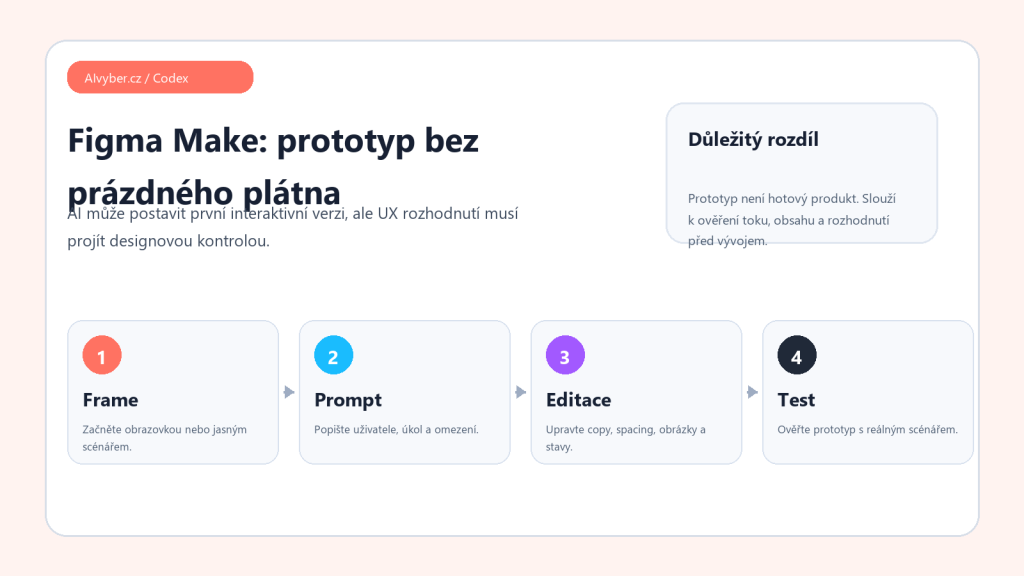
- Start with one scenario and one user type.
- Describe screens, data and decisions the user must make.
- Generate the first version and manually correct content hierarchy.
- Add error states, empty data, loading and mobile variants.
- Test the prototype with one concrete task and capture friction.
Limits and quality checks
An AI prototype can look convincing while missing details that decide usability: validation, help text, permissions, responsiveness and empty states. If the output goes to development unchecked, the team only moves mistakes into a more expensive phase.
- Do not treat generated information architecture as final.
- Check accessibility, contrast and button text length carefully.
- For data prototypes, separate realistic test data from production data.
Who should consider it
Figma Make is useful for product managers, designers and founders who need to show a flow and get feedback quickly. I would not use it as a replacement for UX research or technical specification. It is strongest when it accelerates the first draft and the team keeps control afterwards.
Recommended AI stack for implementation
| Service | Service description | Offer |
|---|---|---|
| NordVPN | VPN service for privacy protection and secure connections. | Open offer |
| Semrush | SEO and marketing platform for analysis and traffic growth. | Open offer |
| Notion | Workspace for notes, documentation, and project management. | Open offer |
| Hostinger | Web hosting and domains for fast website launch. | Open offer |
| Canva | Online design tool for graphics, presentations, and social media. | Open offer |
| Adobe | Creative tools for graphics, video, and digital content. | Open offer |
| Fiverr | Marketplace for freelancers and external specialists. | Open offer |
Note: We use affiliate links for listed services. If you purchase through them, we may earn a commission at no extra cost to you.
From prompt to a testable prototype
Figma Make is most useful when the prompt describes a concrete flow, not only the look of a screen. Instead of “make a dashboard,” write who uses it, which three tasks it must support, which states it needs, and what empty, error, and loading states should look like. The AI prototype can then be tested with a user, not just admired as a static image.
- Start with one main flow: registration, order creation, task approval, or data comparison.
- After generation, add real text and edge cases such as long names or empty lists.
- When handing off to developers, mark what is only a concept and what is a decided interaction.
Figma Make can speed up the first iteration, but a strong product design still needs priorities, states, a data model, and feedback from the people who will use the tool.
Useful links: Explore Figma Make, Figma Make, Figma Make announcement.
Links in this article
Doporučení ke čtení

How to set up Canva AI for quick creation of branded materials
AI onboarding of new hires in the company: a practical plan for the first 30 days

AI meeting notes in Czech: how to measure summary quality and reduce hallucinations