How to generate 3D models for free: AI tools, open-source models, and a practical workflow
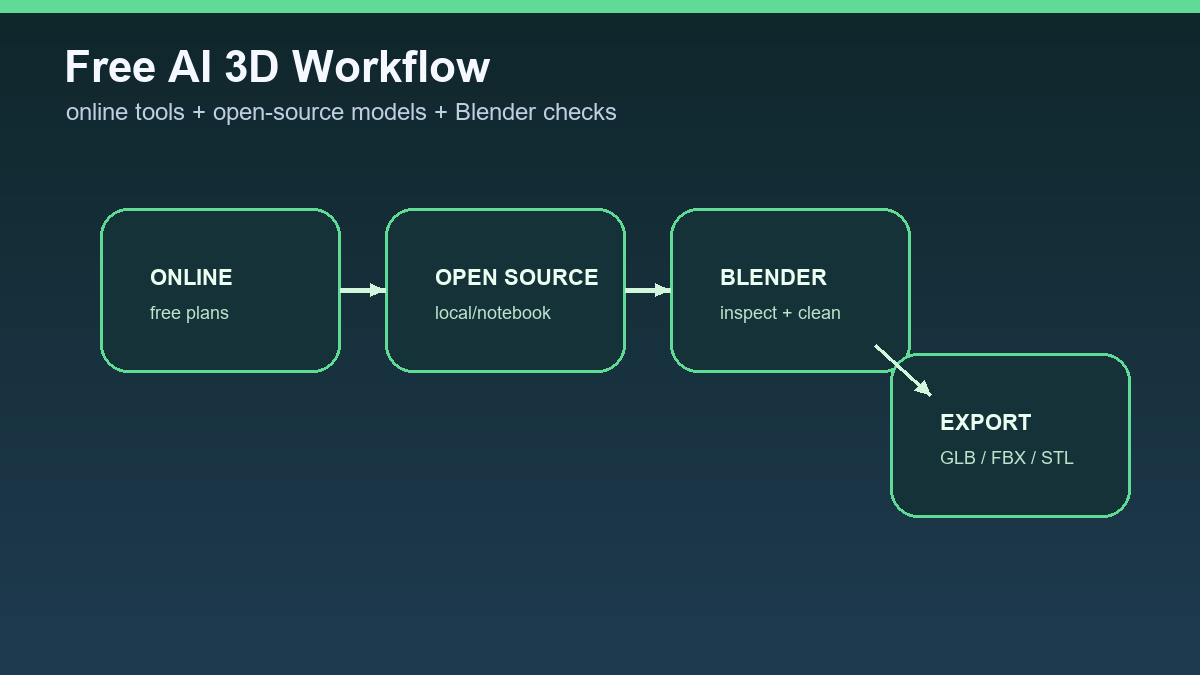
Generating 3D models for free is possible in several ways. The easiest path is an online generator with a free plan. A more technical path is an open-source model you can run locally or in a notebook. The safest workflow is not only about where the model is created. It is about how you inspect, clean, and license it.
This guide is for beginners who want to get a first 3D asset without a large budget. It does not cover professional sculpting or long retopology. The goal is to move from an idea to a checked file you can continue testing.
Three free paths
The first path is an online tool such as Tripo or Meshy. The advantage is a fast start without installation. The downside is credits, export limits, and licensing terms. The second path is an open-source model such as Stable Fast 3D, Hunyuan3D, or TRELLIS. The advantage is more control, while the downside is technical setup and hardware.
The third path is a combination: generate the model for free online, then open it in Blender and repair it manually. For most people this is the best start because you learn how to inspect the output instead of trusting only a browser preview.
- An online generator is fastest for a first test.
- An open-source model is best for technical users and repeatable experiments.
- Blender review is almost always needed.
Step by step for the first model
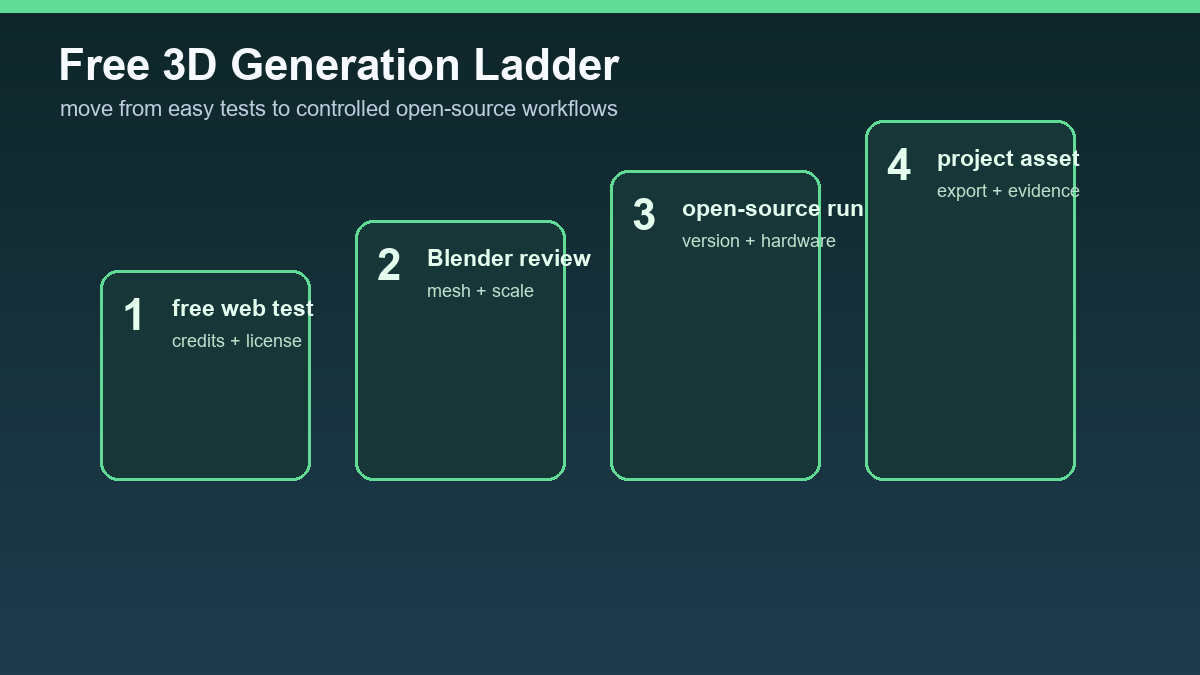
Choose a simple object: a crate, mug, stylized tree, game coin, or small decoration. Write a prompt with style, material, purpose, and detail constraints. Generate several variants and keep only one with a clear silhouette and few unnecessary parts.

Export GLB or OBJ and open the file in Blender. Check scale, pivot, axis orientation, polygon count, textures, and hidden fragments. If the target is 3D printing, check that the model is watertight and that the thinnest parts are thick enough.
Common free-plan limits
Free plans can restrict the number of generations, export quality, texture resolution, commercial use, or access to advanced features. Open-source models can require a strong GPU, Python knowledge, and dependency troubleshooting.
That is why the purpose should be defined first. A school project or prototype has different requirements than an asset you plan to sell. Free does not automatically mean unrestricted.
How to recognize a usable output
A usable model has a clear shape, reasonable polygon count, few floating parts, correct scale, and an export that opens in the target tool. Do not judge only from a screenshot. A screenshot does not show bad normals, internal geometry, or broken UVs.
For game assets, test the model in the engine. For printing, inspect it in a slicer. For product visualization, check materials and lighting. Only after these tests is it fair to call the model usable.
Recommendation
Start with a free online tool, but learn Blender inspection immediately. Once you hit limits or need repeatability, test open-source models. For every asset, write down the source, prompt, date, and license.
A free workflow worth measuring
The biggest mistake with free AI 3D generation is looking only at price. Free can be expensive if every output needs long manual repair. Split the test into three paths: an online generator with a free plan, an open-source model on your own machine or notebook, and manual cleanup in Blender. For each path, measure time, export quality, and legal usability.
- Stable Fast 3D is a good candidate for fast single-image-to-mesh conversion, but the input image must show the object shape clearly.
- Hunyuan3D and TRELLIS make more sense for users who can handle installation, GPU limits, and model license checks.
- Blender remains the review point: open the export and inspect geometry, materials, scale, and mesh holes.
A useful minimum record is the tool name, test date, prompt or input image, export format, license, and inspection result. That makes it clear later whether the asset was actually usable or only looked good in preview.
Useful links: Stable Fast 3D GitHub, Stable Fast 3D on Hugging Face, Hunyuan3D 2.1 GitHub, TRELLIS.2 project.
Links in this article
Doporučení ke čtení