AI animation for 3D models: rigging, Mixamo, and skeleton review before export
Generating a 3D character is easier than animating it well. Animation needs a clean silhouette, separated limbs, reasonable topology, a correct skeleton, and deformation testing. A model that looks good in a static preview can break at the shoulder or stretch textures on the first step.
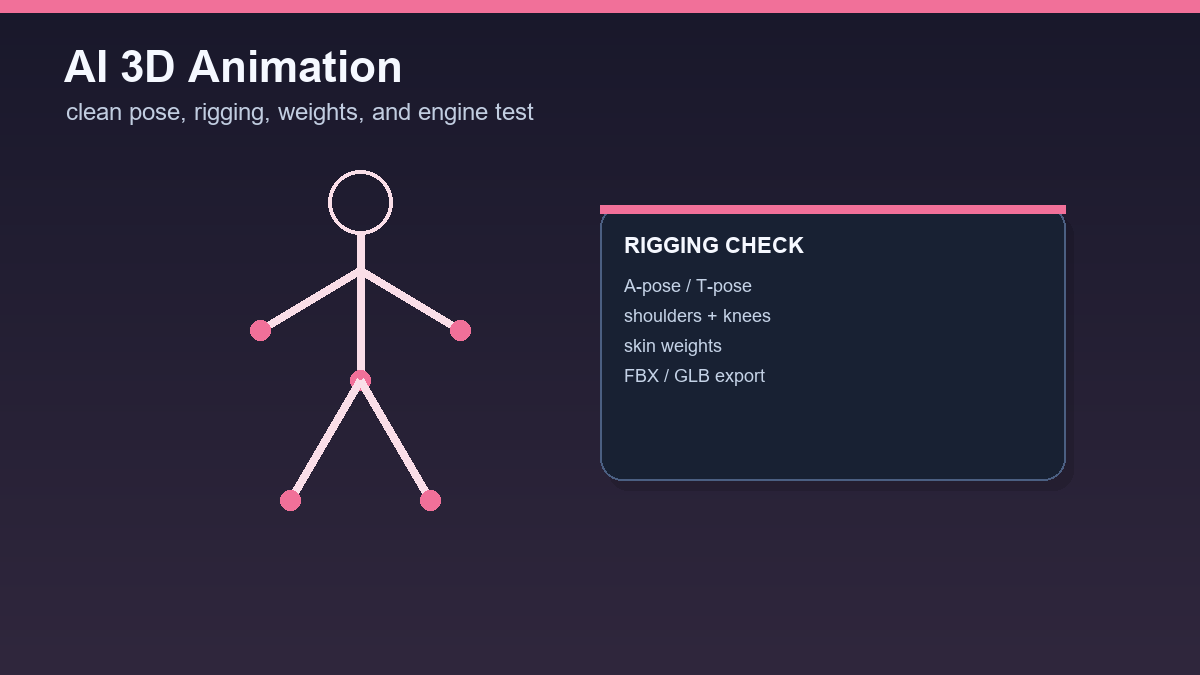
This workflow describes a realistic path: clean the AI model, rig it, test movement, and only then export it to an engine. Mixamo is a useful quick test, but it does not guarantee that every AI model will pass without edits.
Before rigging, the model must be readable
The character should stand upright, with separated arms and legs, a clear neck, simple clothing, and few floating details. T-pose or A-pose helps algorithms identify limbs. Folded arms, long coats, cross-body bags, and asymmetric accessories often hurt automatic rigging.
In Blender, remove unnecessary fragments, normalize scale, and verify that the model has no holes in important areas. If the character has too many polygons, consider decimation or retopology.
Mixamo as a fast skeleton test
Mixamo lets you upload a custom character and automatically rig it. Adobe documentation lists FBX, OBJ, and ZIP upload support. In practice, this lets you quickly see whether the model makes sense for humanoid animation.
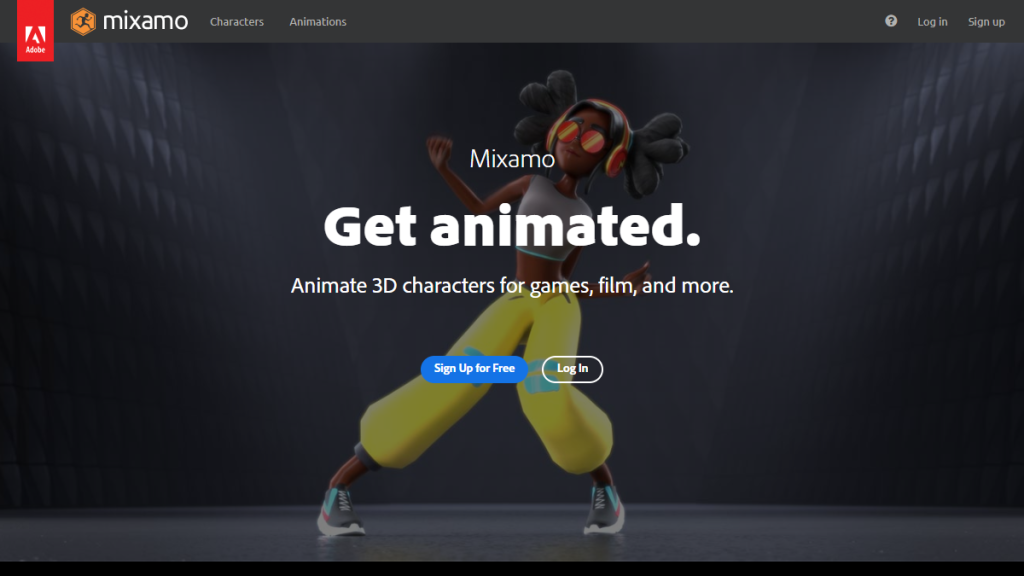
After upload, you place key markers such as chin, wrists, elbows, knees, and groin. If the markers are difficult to place, the model is probably not prepared well for automatic rigging.
- OBJ without textures may need to be uploaded as a ZIP with MTL and textures.
- FBX is useful when you want to keep more information in one file.
- After rigging, always download a test animation, not only the static character.
Deformation review
After downloading an animation, open the file in Blender and play several motions: walk, run, arm raise, and torso turn. Watch shoulders, elbows, knees, wrists, neck, and hips. Those areas reveal bad skin weights most often.
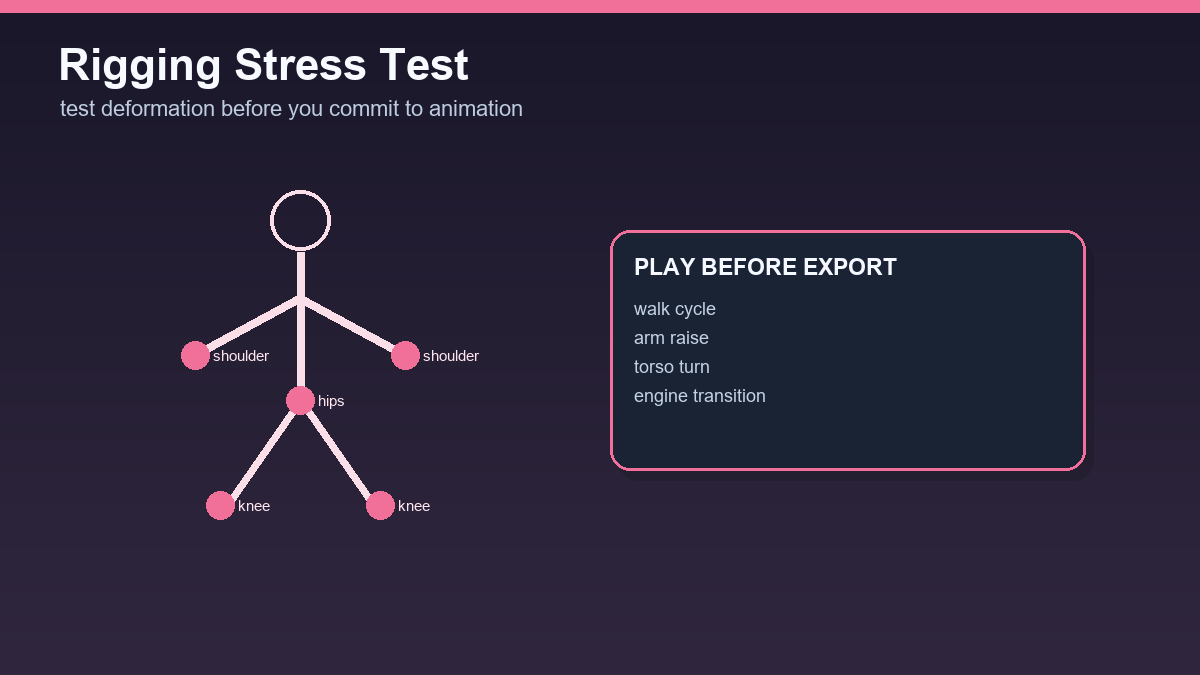
If deformation tears, there are three options: fix weights manually, edit the mesh and rig again, or mark the model as a static asset only. Not every AI output is worth animating.
Export to an engine
Unity and Unreal often use FBX because it carries skeletons and animations well. Godot works very well with glTF/GLB, but other paths can fit specific projects. Export with consistent scale and animation names.
In the engine, test one basic animation, one extreme pose, and transitions between animations. If the model looks good in Blender but breaks in the engine, the issue is often export axes, scale, materials, or skeleton mapping.
Recommendation
AI animation starts at model generation. Prompt for a clean humanoid character in A-pose or T-pose, without complex accessories and with separated limbs. That saves more time than late repairs.
A rigging test that reveals a bad model early
For AI-generated characters, test rigging before spending time on detailed manual cleanup. If shoulders, fingers, or knees break during a basic animation, polishing textures is not the priority. A quick test in Mixamo or Blender shows whether the model has readable limbs, closed geometry, and reasonable joint placement.
- Before rigging, place the model in a T-pose or A-pose and remove unnecessary floating parts.
- After automatic rigging, test walking, running, torso rotation, and raised arms.
- Export to an engine only after deformations are stable and materials are named clearly.
For a game prototype, it is often enough to know whether the asset works in motion. For production, you need manual skinning, topology-flow checks, and separate LOD versions. Treat the AI 3D generator as the start of the model, not as a finished animated character.
Useful links: Adobe Mixamo, Blender armatures manual, Unreal skeletal mesh pipeline.
Links in this article
Doporučení ke čtení