Importing AI 3D models into Godot, Unreal, and Unity: formats, scale, materials, and collisions
Importing an AI 3D model into an engine is not just drag and drop. AI outputs often have irregular mesh, unclear scale, too many materials, a bad pivot, or textures that look different in the target engine than in the online preview. A short review workflow is safer.
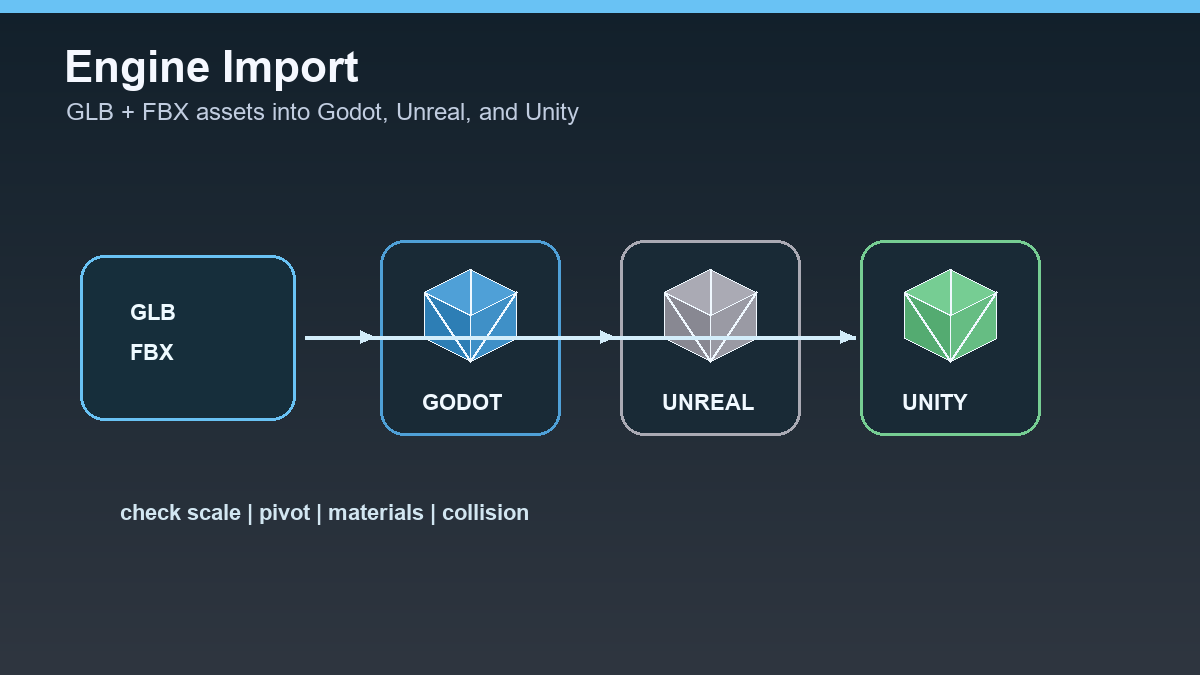
The safest path goes through Blender or another 3D editor. Open the model, fix basic issues, normalize scale, and only then export for Godot, Unreal, or Unity.
Choosing a format
Godot recommends glTF 2.0 and works well with GLB/GLTF scenes. Unity uses FBX as its internal import chain and its documentation recommends FBX whenever possible. Unreal has a strong FBX path, especially for skeletal meshes and animation.
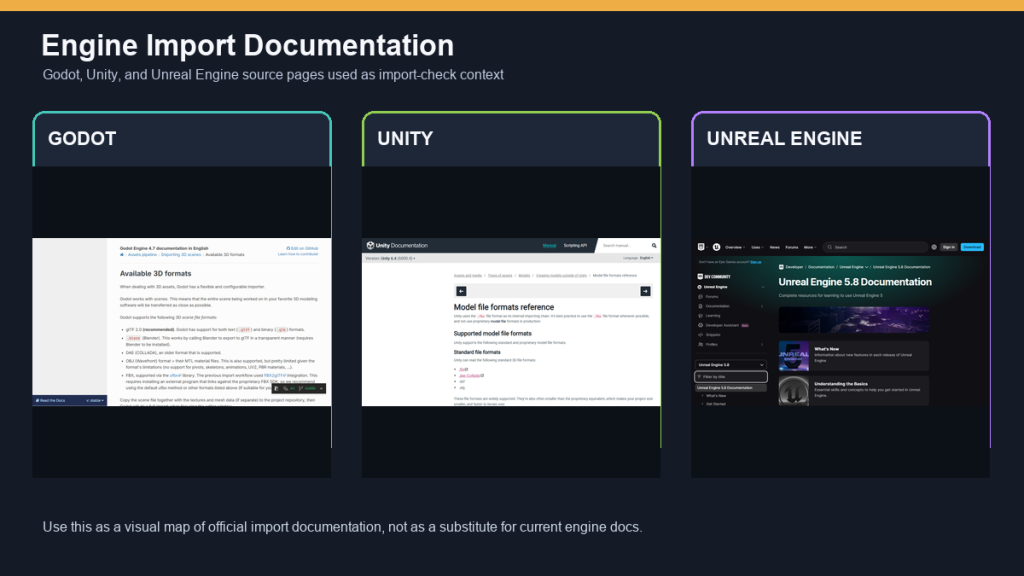
In practice: for static models, test GLB/glTF and FBX. For animated characters, start with FBX but verify the skeleton in the engine. Use OBJ mostly as a simple fallback for geometry transfer.
- Godot: often GLB/glTF.
- Unity: often FBX, depending on workflow and project.
- Unreal: often FBX for static and skeletal imports.
Blender review before import
In Blender, set origin, scale, axis orientation, and object names. Remove hidden parts, consolidate materials, and check that textures are in the right folder. With AI assets, reducing polygon count before import is often useful.
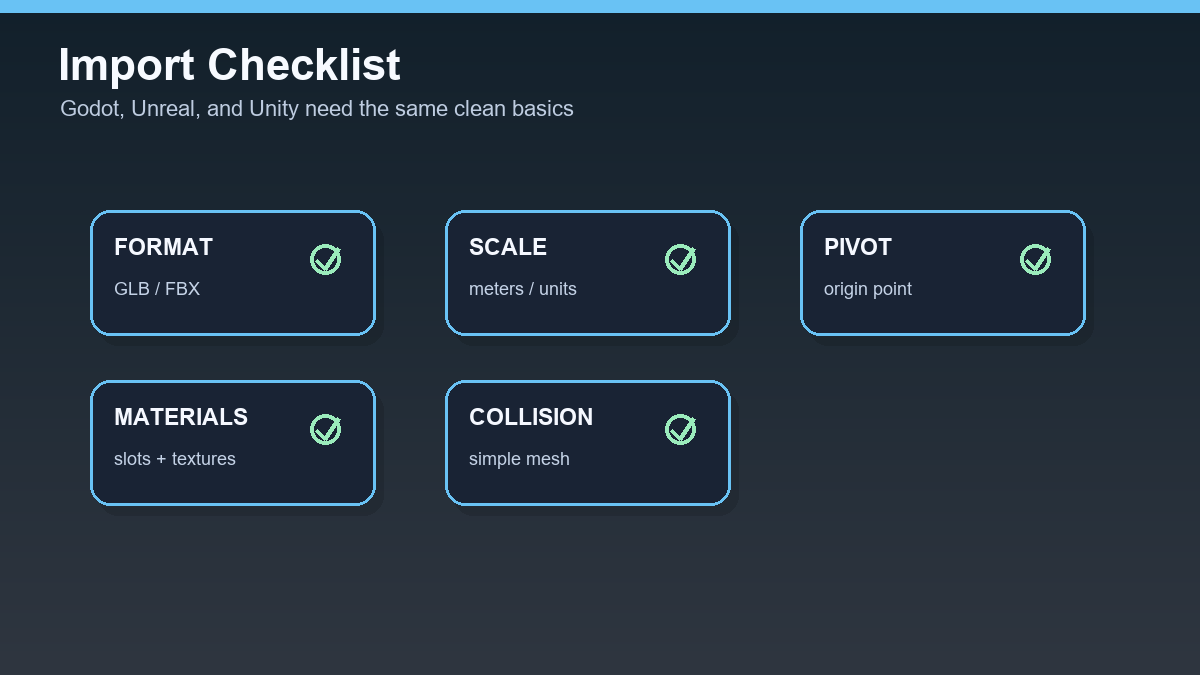
If the model has animations, check skeleton, animation names, and deformation. If it will be used for physics, create a simple collision mesh instead of asking the engine to calculate collisions from detailed AI geometry.
Import into Godot
In Godot, prefer GLB/glTF. After import, check the scene, materials, scale, and possible AnimationPlayer entries. If importing FBX, expect conversion through FBX2glTF depending on version and project setup.
For game assets, create a simple collision shape immediately and test the model in a real scene with actual lighting. Online previews often do not match in-game lighting and shaders.
Import into Unity
In Unity, start with FBX if you need common production compatibility. After import, check Scale Factor, Materials, Rig, and Animation tabs. AI models can have many material slots, so consolidation beforehand helps.
For static objects, handle colliders separately. A mesh collider from a detailed AI model can be unnecessarily expensive. For a prototype, a box, capsule, or simple convex mesh is usually enough.
Import into Unreal Engine
Unreal imports FBX through the Content Browser and offers options for mesh, materials, skeleton, and animations. For skeletal meshes, the model must contain a correct skeleton and skinning. Otherwise it becomes static or deforms poorly.
After import, check scale, LODs, materials, and collisions. Unreal can do a lot with assets, but it cannot fix a bad AI base automatically. A clean Blender export saves time.
Import preflight for Godot, Unity, and Unreal
Before importing into an engine, prepare one review scene. The model should be at real scale, with the correct pivot, clean materials, and no unnecessary hidden objects. AI exports often look fine on their own, but problems appear next to a character, camera, lights, and collision setup.
| Engine | Test first | Common issue |
|---|---|---|
| Godot | GLB/glTF import and materials | scale, culling, node names |
| Unity | FBX materials and texture extraction | unconnected textures, wrong scale factor |
| Unreal | FBX static mesh pipeline | collision, LODs, incomplete material maps |
For every model, keep the original export, the repaired Blender file, and the final engine import. If material or scale issues appear later, you can quickly find the step where the problem started.
Useful links: Godot importing 3D scenes, Unity importing model files, Unreal FBX static mesh pipeline.
Links in this article
Doporučení ke čtení