AI system for sorting customer inquiries and suggesting responses
Customer support is often one of the first processes where artificial intelligence pays off in a practical and fast way. A typical support team handles dozens to hundreds of repetitive inquiries every day: changes to billing details, order status, returns, technical issues, complaints, or escalation requests. This is exactly where it makes sense to deploy AI so that it first sorts the inquiry, then suggests a response, and in risky cases hands the ticket over to a human.
This guide shows a feasible approach for an MVP project that can be deployed without extensive development. The goal is not fully autonomous support without people, but a functional combination of automation and control: AI helps with classification and response suggestions, while the operator approves or handles exceptions. The process is designed so that after completing the individual steps, an operational foundation is created on top of real services.
Introduction

In practice, AI brings the greatest value in a support workflow at three points. First, it shortens the time from receiving an inquiry to assigning it. Second, it standardizes the quality of responses, because the suggestion is based on prepared rules and an internal knowledge base. Third, it helps with escalation where there is a higher risk of error: for example in legal disputes, returns after the deadline, VIP customers, or service incidents.
A well-designed MVP must handle several specific tasks: read incoming text, assign a category, determine priority, recognize the language, suggest a response, and decide whether it is safe to respond automatically or whether escalation is necessary. This requires not only a model, but also data, rules, and integration into the ticketing system.
Project goal
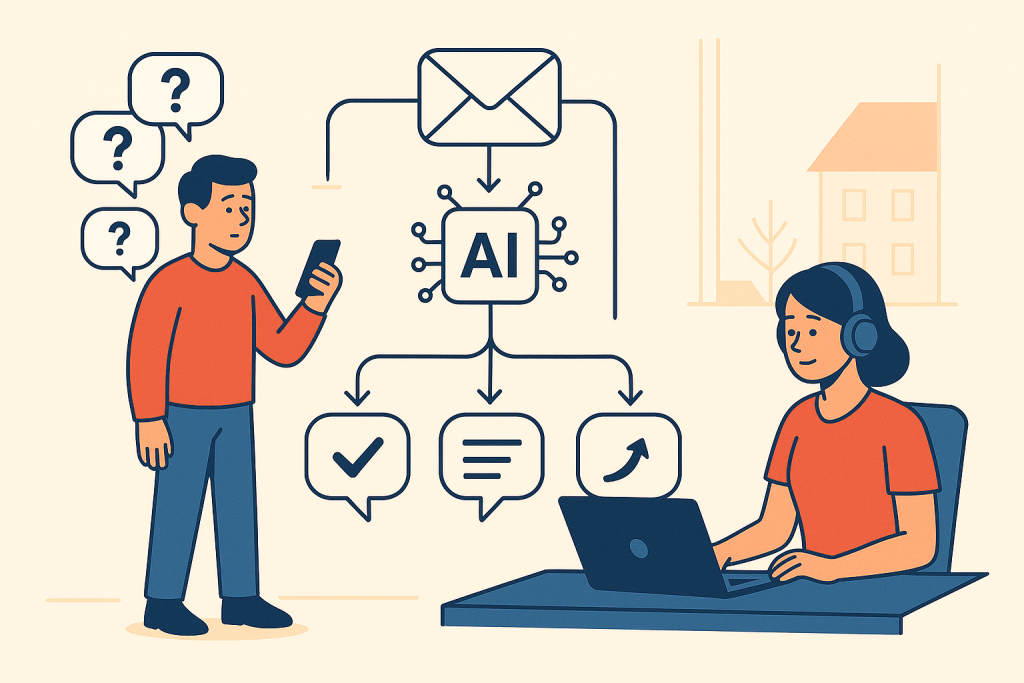
The goal of the project is to create a minimally viable solution that, after receiving a customer inquiry in the Zendesk system, performs the following:
- determines the inquiry category, for example billing, returns, technical issue, order status,
- evaluates priority and recommends a queue or team,
- generates a response draft in Czech,
- flags cases that should be escalated to a human,
- writes the result back into the ticket as an internal note and optionally pre-fills the response for the operator.
The MVP can be considered successful when the system automatically classifies most common inquiries correctly, shortens first response time, and does not reduce service quality. A reasonable initial goal is, for example, classification accuracy above 80% on selected categories and a 30% reduction in first response time. If such values are not yet achievable in your environment, that is a project limitation, not a flaw in the methodology.
Prerequisites
Before you begin, prepare your environment and minimum inputs. In this guide we will use:
- Zendesk Support for working with tickets,
- Zapier for automation without your own backend,
- OpenAI API for classification and response drafting,
- Google Sheets for tracking categories, rules, and test data.
You will need administrative access at least to the settings section. Also prepare:
- a history of at least 200 to 500 anonymized tickets,
- a list of categories and queues,
- basic company rules for responses, for example communication tone, deadlines, and prohibited wording,
- API keys for OpenAI and Zendesk integration.
If you do not have ticket history, the MVP can still be launched with a smaller sample, but classification accuracy will likely be lower. It is appropriate to explicitly treat this as a limitation of the pilot operation.
Implementation steps
Step 1: Define categories, priorities, and escalation rules
What and why: Before involving AI, you must define exactly what the system should return. Without stable categories and rules, the model may respond, but the results will not be reliably usable in operations. The first goal is to create a simple schema according to which every ticket will be processed.
How exactly: In Google Sheets, create a sheet called support_taxonomie with the columns kategorie, priorita_default, eskalace_podminka, cilovy_tym, auto_reply_allowed. Fill in, for example, these rows:
kategorie,priorita_default,eskalace_podminka,cilovy_tym,auto_reply_allowed
stav_objednavky,nizka,nikdy,customer_care,ano
fakturace,stredni,pokud obsahuje zadost o dobropis,billing,ano
vraceni_zbozi,stredni,pokud po lhute nebo spor,returns,ano
technicky_problem,vysoka,pokud vypadek nebo vice zakazniku,tech_support,ne
pravni_stiznost,kriticka,vzdy,legal,ne
In Zendesk, in the menu Admin Center → Objects and rules → Tickets → Fields, create custom fields:
ai_categoryof type dropdown,ai_priorityof type dropdown,ai_escalateof type checkbox,ai_draft_replyof type multiline text.
Specific input: the eskalace_podminka column with the value pokud po lhute nebo spor.
Specific output: a list of five to ten categories and corresponding rules usable in automation.
Success metric: 100% of historical tickets can be manually assigned to exactly one category or to the exception ostatni. If not, the taxonomy is still too unclear.
This creates the framework according to which the next steps will work consistently. Now you need to prepare the data on which you will verify that the chosen schemas make sense.
Step 2: Prepare historical data and label a sample of tickets
What and why: Even if you are not training your own model in this MVP, you still need a test and validation set. Without it, you will not know whether the AI is classifying correctly or exactly where it makes mistakes.
How exactly: In Zendesk, export historical tickets via Admin Center → Accounts → Tools → Reports → Export data, or use the official export options available in your plan. Transfer at least these columns into Google Sheets or CSV:
ticket_id,subject,description,created_at,brand,locale,final_group,manual_category.
Then manually label at least 150 tickets in the manual_category column according to the taxonomy from step 1. For anonymization, remove personal data. A simple action in the sheet is replacing emails with [EMAIL] and phone numbers with [TEL].
Sample input:
ticket_id: 58421
subject: Invoice for order 2024-1198
description: Hello, my company ID is missing from the invoice and I need it corrected.
locale: cs
Expected output after labeling:
manual_category: fakturace
expected_priority: stredni
expected_escalation: ne
Specific input: the description field.
Specific output: the columns manual_category, expected_priority, expected_escalation.
Success metric: at least 150 manually labeled tickets, with at least 20 in each main category. If the distribution is very uneven, the pilot results will be skewed.
Once you have the data and the ground truth, you can design the AI logic itself so that it returns structured values usable in Zendesk and Zapier.
Step 3: Design a structured prompt for classification and escalation
What and why: For a support workflow, it is essential that the model does not return free text, but a predictable structure. This simplifies both automation and auditing. In this step, you will create a prompt that extracts category, priority, reason, and escalation recommendation from a single ticket.
How exactly: In the OpenAI platform, use the Responses API endpoint. In Zapier, you will then configure an OpenAI action, but first fine-tune the prompt manually. Use, for example, this input format:
System:
You are an assistant for e-commerce customer support. Assign the inquiry to only one of the following categories:
- stav_objednavky
- fakturace
- vraceni_zbozi
- technicky_problem
- pravni_stiznost
- ostatni

Determine priority: nizka | stredni | vysoka | kriticka.
Determine escalation: ano | ne.
Always escalate in the case of a legal complaint, threat of dispute, service outage, multiple affected customers, or if there is not enough information for a safe response.
Return only JSON with the structure:
{
  "category": "",
  "priority": "",
  "escalate": "",
  "reason": ""
}

User:
subject: Invoice for order 2024-1198
description: Hello, my company ID is missing from the invoice and I need it corrected.
locale: cs
brand: Main e-shop
Expected output:
{
  "category": "fakturace",
  "priority": "stredni",
  "escalate": "ne",
  "reason": "The customer is requesting a correction of billing details; this is not a dispute or legal complaint."
}
If you use direct API calls, a relevant parameter will be, for example, model with the value gpt-4.1-mini. The specific availability of the model must be verified in the current OpenAI documentation; if the offering changes, this is an operational limitation that may require replacement with a similar model.
Specific input: the fields subject, description, locale.
Specific output: JSON with the keys category, priority, escalate, reason.
Success metric: at least 95% of responses can be parsed without error as valid JSON. If not, the prompt needs to be tightened.
Once classification returns a stable structure, you can build on it with the second AI step: a response draft for the operator or direct use in safe cases.
Step 4: Add response draft generation according to company rules
What and why: Classification alone saves time, but the biggest operational effect often comes from response drafting. It is important that the response is based on internal rules and is not overly confident where data is missing.
How exactly: In Google Sheets, create a sheet called knowledge_base with the columns category, policy_summary, allowed_actions, forbidden_claims, template_reply. For the category vraceni_zbozi, you can enter for example:
category: vraceni_zbozi
policy_summary: Standard return within 14 days of receipt, unused goods.
allowed_actions: send a link to the form, request the order number
forbidden_claims: do not promise an exception after the deadline without approval
template_reply: Hello, thank you for your message. To return goods, please send the order number and fill out the form at ...
In the response prompt, then combine the classification output and the corresponding record from the sheet:
System:
You are a customer support assistant. Write in Czech, briefly and politely. Follow policy_summary and forbidden_claims. If you are not sure, say that we are forwarding the request to a specialist.
Return JSON:
{
  "draft_reply": "",
  "needs_human_review": true,
  "used_policy": ""
}

User:
category: fakturace
policy_summary: Correction of company ID and VAT ID on an invoice is possible after verifying the order number.
forbidden_claims: do not promise immediate issuance without verification
subject: Invoice for order 2024-1198
description: Hello, my company ID is missing from the invoice and I need it corrected.
Expected output:
{
  "draft_reply": "Dobrý den, děkujeme za zprávu. Opravu fakturačních údajů můžeme provést po ověření objednávky. Prosím pošlete číslo objednávky a správné IČO, případně DIČ.",
  "needs_human_review": true,
  "used_policy": "Oprava IČO a DIČ na faktuře je možná po ověření čísla objednávky."
}
Specific input: the forbidden_claims column with the value neslibovat okamžité vystavení bez ověření.
Specific output: the draft_reply field ready to be inserted into the ticket.
Success metric: in a manual audit of 50 responses, no more than 5% of drafts contain claims that contradict internal rules.
You now have two basic AI modules. The next logical step is to connect them to a real ticket so that everything runs automatically after it is created.
Step 5: Build the workflow in Zapier between Zendesk and OpenAI
What and why: In this step, the individual parts become a working process. Zapier ensures that after a ticket is created, it calls OpenAI, processes the output, and writes it back into Zendesk.
How exactly: In Zapier, create a new Zap. Choose Zendesk → New Ticket as the trigger. Verify the account connection and select a test ticket. Then add the action Formatter by Zapier → Text, where you shorten overly long text, for example to 4000 characters. Then add one OpenAI action for classification and a second OpenAI action for response drafting.
Example of specific input mapping in the Zap:
subject← Zendesk Ticket Subjectdescription← Zendesk Descriptionlocale← Zendesk Localebrand← Zendesk Brand Name
After both AI steps, add the action Zendesk → Update Ticket and map:
Custom Field: ai_category←categoryCustom Field: ai_priority←priorityCustom Field: ai_escalate←escalateInternal Note← classification reason + response draft
A short example of an internal note:
AI classification: fakturace
Priority: medium
Escalation: no
Reason: The customer is requesting a correction of billing details.
Response draft: Hello, thank you for your message...
Specific input: the New Ticket trigger and the Description field.
Specific output: an updated ticket with the fields ai_category, ai_priority, ai_escalate filled in and an internal note.
Success metric: at least 90% of test tickets pass through the entire Zap without a technical error. If not, the problem is most often empty fields, text length, or JSON format.
Automatic processing is now working, but the operational logic is still missing for what should happen during escalation and how to distinguish safe automatic cases from risky ones.
Step 6: Introduce rules for automatic assignment and escalation
What and why: AI should not only suggest a response, but also decide when not to use it without review. This step adds an operational safeguard that minimizes the risk of incorrect responses.
How exactly: In Zendesk, open Admin Center → Objects and rules → Business rules → Triggers and create a trigger, for example named AI escalation to specialized queue. Set the conditions:
Ticket: AI escalationischecked,Statusis notsolved.
Actions can be, for example:
Group=Tech Support, ifai_category = technicky_problem,Priority=high, ifai_priority = vysoka,Add tags=ai_escalated.
At the same time, create a second trigger for safe cases, for example AI response draft for operator, which when ai_escalate = false only adds an internal note and does not automatically send a response to the customer. I recommend enabling fully automatic sending in the MVP only for a very limited group of inquiries, for example stav_objednavky, if you have verified data from the order system. Without such integration, it is safer to stick to response drafts.
Example decision rule:
if category == "pravni_stiznost" then escalate = ano
if description contains "ČOI" or "lawyer" then escalate = ano
if category == "stav_objednavky" and missing_order_id then escalate = ano
Specific input: the value of the ai_escalate field and the ai_escalated tag.
Specific output: a ticket assigned to the correct group, with priority and an internal note for the operator.
Success metric: 100% of tickets marked as pravni_stiznost or containing the term ČOI are escalated to a human. This metric takes priority over speed.
You now have a functional MVP workflow. To make it usable in normal operations, you need to measure it on historical and new data and determine where it can be trusted and where it cannot.
Step 7: Evaluate accuracy on the test set and fine-tune the rules
What and why: Before deployment to live operations, you must compare AI outputs with the manually labeled set. This will show not only overall accuracy, but especially problematic categories and frequent reasons for errors.
How exactly: In Zapier or via a script, send 150 labeled tickets through the same workflow as in production and write the results into Google Sheets in a sheet called evaluation with the columns ticket_id, manual_category, ai_category, manual_escalation, ai_escalation, reply_ok, notes.
Then create simple formulas in the sheet. For example, for category accuracy:
=COUNTIF(H2:H151;TRUE)/COUNTA(A2:A151)Where column H contains the logical value of whether manual_category = ai_category.
Example input and expected evaluation output:
Input:
manual_category = vraceni_zbozi
ai_category = vraceni_zbozi
manual_escalation = ne
ai_escalation = ano

Output:
category_match = ano
escalation_match = ne
notes = The AI was too cautious due to the missing order number.
Specific input: the manual_escalation column.
Specific output: calculated metrics accuracy_category, accuracy_escalation, reply_ok_rate.
Success metric: target at least 80% category accuracy, 90% capture of mandatory escalations, and 85% usable response drafts after light operator editing.
If the results are not good enough, do not immediately return to a complete rebuild. First adjust the taxonomy, add examples to the prompt, and refine the escalation rules. Only then does it make sense to consider a more complex architecture.
Recommended AI stack for implementation
Select tools according to your budget and level of automation. Below is a direct overview of services for implementing the project.
| Tool | Offer |
|---|---|
| NordVPN | Open offer |
| Semrush | Open offer |
| Make | Open offer |
| Hostinger | Open offer |
| Fiverr | Open offer |
| Adobe | Open offer |
| Canva | Open offer |
| Jasper | Open offer |
Testing
Divide testing into three layers. The first is technical: whether the Zap runs, the JSON is valid, and the fields are written into Zendesk. The second is content-related: whether the classification and response drafts comply with internal rules. The third is operational: whether the workflow actually saves time and does not increase the number of incidents.
A practical MVP test plan:
- Smoke test on 10 tickets: verify the Zendesk → Zapier → OpenAI → Zendesk connection.
- Content audit on 50 tickets: two support team members evaluate the correctness of the category and response draft.
- Pilot in limited operation on one queue, for example billing and order status, for one week.
Track specific indicators:
- rate of correctly filled category,
- rate of mandatory escalations captured by AI,
- average first response time,
- share of response drafts used without major modification,
- number of complaints caused by an incorrect AI draft.
If an error with higher impact appears, for example incorrect advice in a complaint or legal complaint, temporarily switch the relevant category to mandatory human review.
Deployment
For production deployment, choose a gradual rollout. First activate only internal notes and field filling, not automatic sending of responses to customers. Only after verifying the results can you consider automatic responses for selected safe scenarios.
Recommended rollout:
- Week 1: classification and priority only.
- Week 2: add a response draft as an internal note.
- Week 3: enable automatic routing to queues.
- Week 4: consider automatic response only for narrowly defined inquiries.
In Zendesk, prepare a dashboard or at least filtered views by the ai_escalated tag and custom field values. In Google Sheets or a BI tool, track a weekly overview of metrics. It is important that someone has specific responsibility for reviewing errors and adjusting prompts. Without this operational role, quality usually deteriorates over time.
Limits
This approach has several limitations that need to be named openly.
- The model does not automatically know internal systems. If the response draft depends on order status, inventory, or payment status, you must provide this data through integration. Without it, AI can only formulate a safe draft, not confirm facts.
- Quality depends on taxonomy and rules. If categories overlap or are vague, the model will make mistakes even with a good prompt.
- Legal and sensitive cases require human review. This is not a weakness of the MVP, but the correct safety setting.
- Model offerings and API prices may change. Official documentation and costs need to be checked regularly.
- Without ongoing auditing, drift is a risk. If inquiry types or internal policy change, both the prompt and the rules must be updated.
If you need higher accuracy, the next step is usually connecting to an internal knowledge base and transactional systems, or more advanced orchestration outside Zapier. However, that goes beyond the scope of this MVP.
FAQ
Do I need to train the model on my own data?
No for this MVP. A high-quality prompt, clear taxonomy, and a test set are enough. Custom training or fine-tuning may help later, but it is not necessary for the first operational version.
Can responses be sent to customers fully automatically?
Yes, but this can only be recommended for limited and well-verified scenarios. Without connection to internal data, it is safer to use AI as a draft for the operator.
What is the minimum number of tickets I need for a pilot?
A practical minimum is around 150 manually labeled tickets for evaluation and 200 to 500 historical tickets for orientation in inquiry types. A smaller sample is possible, but the results will be less reliable.
What if the model returns the wrong JSON format?
First tighten the prompt and add a requirement to return only JSON. If the problem persists, insert an intermediate validation and fallback step in Zapier, for example setting the category to ostatni and mandatory escalation.
How do I know whether the response draft is good enough?
Track the share of responses that the operator uses without major editing and the number of incidents caused by an inaccurate draft. For an MVP, a good goal is that at least 85% of drafts only need light adjustment.
Conclusion
Automatic classification of customer inquiries, response drafts, and controlled escalation using AI are among the projects where a tangible result can be delivered relatively quickly. The key is not only the choice of model, but above all a carefully prepared taxonomy, clear escalation rules, structured outputs, and ongoing auditing. If you proceed in small steps, you can deploy an MVP within a few days to weeks that automatically fills in the category and priority in Zendesk, suggests a response, and hands risky cases over to a human.
The most sensible strategy is to start conservatively: AI as an operator assistant, not as an uncontrolled autopilot. Once you gain data on accuracy and behavior in operation, you can safely expand the scope of automation. This is usually the path that leads to the fastest return on investment and to the trust of the support team.
Recommended next step
Links in the article
- Zendesk Support – official help
- Zendesk Developer Docs
- Zapier
- OpenAI
- Zendesk – product screenshots and documentation
- Zapier
- NordVPN
- Semrush
- Hostinger
- Fiverr
- Adobe
- Canva
- Make
- Jasper
Sources of illustrative images
- Stock photo: source
The custom illustrative image was created using the OpenAI Images API.
| Service | Service description | Offer |
|---|---|---|
| NordVPN | VPN service for privacy protection and secure connections. | Open offer |
| Semrush | SEO and marketing platform for analysis and traffic growth. | Open offer |
| Make | Advanced visual automation for workflows and integrations. | Open offer |
| Hostinger | Web hosting and domains for fast website launch. | Open offer |
| Fiverr | Marketplace for freelancers and external specialists. | Open offer |
| Adobe | Creative tools for graphics, video, and digital content. | Open offer |
| Canva | Online design tool for graphics, presentations, and social media. | Open offer |
| Jasper | AI tool for marketing copy and content campaigns. | Open offer |
Note: We use affiliate links for listed services. If you purchase through them, we may earn a commission at no extra cost to you.